
2 HP · Speed 3 · Score 10
1 HP · Speed 5.5 · Score 20
Where do two enemies actually differ?
To add a faster enemy, the first instinct is to hit Ctrl+D on the prefab and edit a few numbers. That works right up until you need to change the collider and have to open every copy to change it again.
Look at the two cards above. Both enemies use exactly the same component set: Sprite Renderer, Rigidbody, collider, Health, EnemyMover, DamageOnContact. All that differs is the sprite and a handful of numbers. So we keep one prefab and move the differences into two data assets that live separately.
Save the scene as SEU_06_Data.
Three kinds of data that must not mix
| Where | Holds | Example |
|---|---|---|
| Prefab | Component structure and shared references | Rigidbody, collider, Enemy |
| ScriptableObject asset | Configuration for one type | Max HP 2, Speed 3 |
| Component on an instance | Per-object runtime state | Enemy A has 1 HP left, enemy B has 2 |
A ScriptableObject is an asset living in Project, not a component you drop onto a GameObject. That leads to a consequence you have to remember: two enemies read the same EnemyData, so writing current health into that asset would drain the health of the entire type when one of them gets shot. Current health belongs to the instance, and lesson 5 already put it in the right place inside Health.Current.
Build the data from the comparison table
Assets/_ShootEmUp/Scripts/Data/EnemyData.cs
using UnityEngine;

namespace ShootEmUp.Data
{
    [CreateAssetMenu(menuName = "ShootEmUp/Enemy Data", fileName = "Enemy_New")]
    public sealed class EnemyData : ScriptableObject
    {
        [Header("Look")]
        public Sprite sprite;

        [Header("Stats")]
        [Min(1)] public int maxHealth = 2;
        [Min(0f)] public float speed = 3f;
        [Min(0)] public int contactDamage = 1;

        [Header("Reward")]
        [Min(0)] public int scoreValue = 10;
    }
}
[CreateAssetMenu] is what makes this asset creatable with the mouse: it adds an entry to the Project window's Create menu. Without the attribute the class still compiles, but you would need code to create an instance.
scoreValue is stored now even though this lesson has no scoring. Lesson 8 reads it when an enemy dies, and declaring it up front saves editing all six assets later.
In ScriptableObjects/Enemies, choose Create → ShootEmUp → Enemy Data twice:
| Asset | Sprite | Max Health | Speed | Contact Damage | Score |
|---|---|---|---|---|---|
| Enemy_InsectBasic | Standard enemy | 2 | 3 | 1 | 10 |
| Enemy_InsectFast | Second enemy | 1 | 5.5 | 1 | 20 |
Apply bridges configuration and behavior
An asset is just data sitting still. Something has to read it and hand each value to the component that knows what to do with it:
Before creating Enemy, replace Health, DamageOnContact, and EnemyMover with the complete versions in the lesson 6 package. Those three files add SetMax plus the Speed and Damage properties that Apply writes into. Overwrite the files at the same paths, do not create a second class, and the prefab's references survive untouched.
Assets/_ShootEmUp/Scripts/Enemies/Enemy.cs
using ShootEmUp.Combat;
using ShootEmUp.Data;
using UnityEngine;

namespace ShootEmUp.Enemies
{
    [RequireComponent(typeof(SpriteRenderer), typeof(Health), typeof(EnemyMover))]
    [RequireComponent(typeof(DamageOnContact))]
    public sealed class Enemy : MonoBehaviour
    {
        [Tooltip("Which enemy type this instance is. Swap the asset, not the prefab.")]
        [SerializeField] private EnemyData data;

        public EnemyData Data => data;

        private SpriteRenderer spriteRenderer;
        private Health health;
        private EnemyMover mover;
        private DamageOnContact contactDamage;

        private void Awake()
        {
            spriteRenderer = GetComponent<SpriteRenderer>();
            health = GetComponent<Health>();
            mover = GetComponent<EnemyMover>();
            contactDamage = GetComponent<DamageOnContact>();
        }

        private void OnEnable()
        {
            if (data == null)
            {
                Debug.LogError($"{name}: no EnemyData assigned, enemy will use prefab defaults.", this);
                return;
            }

            Apply(data);
        }
        public void Apply(EnemyData newData)
        {
            data = newData;
            spriteRenderer.sprite = data.sprite;
            health.SetMax(data.maxHealth);
            mover.Speed = data.speed;
            contactDamage.Damage = data.contactDamage;
        }
    }
}
Apply runs in OnEnable, following the pooling rule from lesson 4: every time an object is switched on it starts a new lifetime, so the configuration must be reloaded. SetMax both sets the ceiling and refills, so a recycled enemy never inherits the previous one's health.
Apply is also public because lesson 7 needs it: the spawner rents an object from the pool and only then decides what type it should be.
Open the Enemy_Insect prefab, add the Enemy component, and drag Enemy_InsectBasic into the Data field. From now on the sprite and numbers sitting on the individual components are only starting values, because Apply overwrites them the moment the object is enabled.
This is exactly the part that is hardest to believe, so look at it directly. Before running, the enemy's Inspector holds the prefab's values:
Press Play and the same Inspector now holds the asset's values:
Those two screenshots are the proof that the asset beats the prefab. If nothing changes, check whether the Data field is empty and whether the Console printed no EnemyData assigned.
Make a variant with an instance override
The scene still has the three hand-placed enemies from lesson 5. Select the middle one and change its Data field to Enemy_InsectFast.
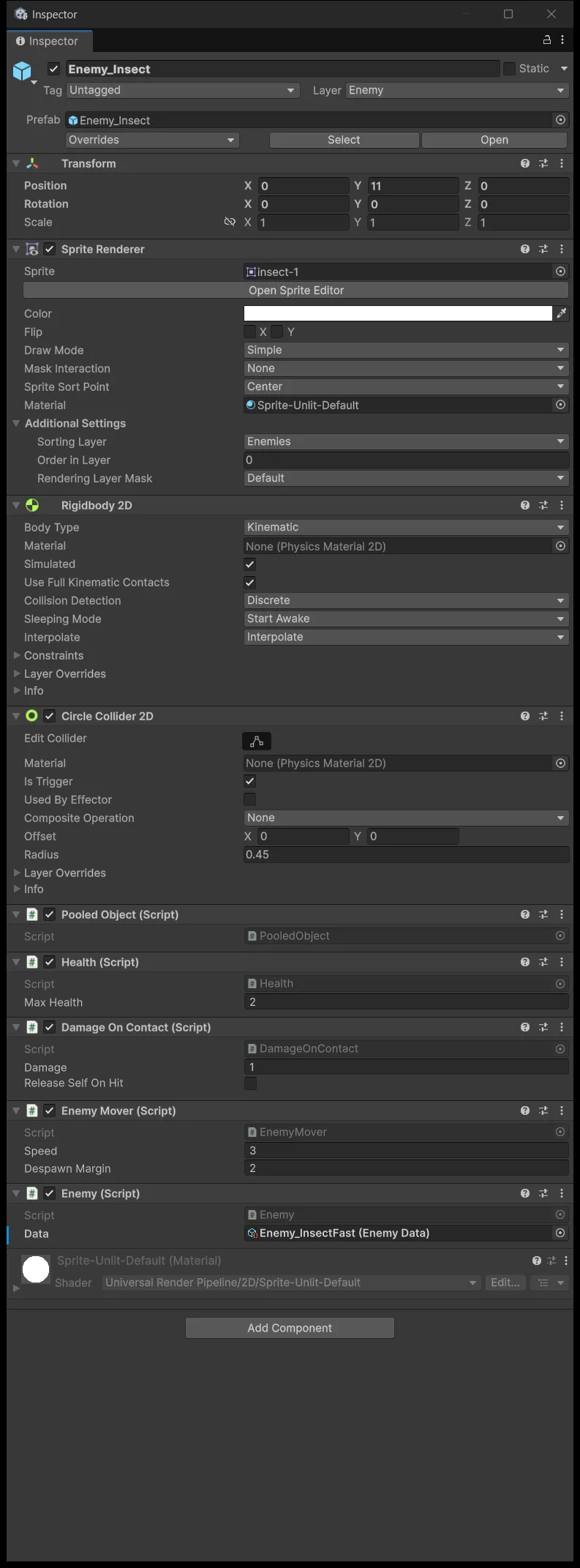
Unity bolds the changed row and adds a blue bar on the left to mark it as an override belonging to that instance alone. Do not press Apply All in the top bar, because that pushes the change up to the prefab and makes InsectFast the default for every enemy.
Press Play: the two ordinary enemies move slowly and need two hits, the middle one is fast and dies to a single hit.

Check all three things rather than just the sprite. A changed sprite only proves spriteRenderer.sprite was assigned; the speed and the number of hits are what prove mover.Speed and health.SetMax received their data too.
Reuse the same idea for the gun
Assets/_ShootEmUp/Scripts/Data/WeaponData.cs
using UnityEngine;

namespace ShootEmUp.Data
{
    [CreateAssetMenu(menuName = "ShootEmUp/Weapon Data", fileName = "Weapon_New")]
    public sealed class WeaponData : ScriptableObject
    {
        [Min(0.1f)] public float shotsPerSecond = 6f;
        [Min(0f)] public float projectileSpeed = 14f;
        [Min(1)] public int damage = 1;
    }
}
Create a Weapon_Laser asset with Shots Per Second 6, Projectile Speed 14, Damage 1.
Replace Projectile and PlayerShooting with the lesson 6 versions from the source package. PlayerShooting drops its own fire-rate field in favour of a WeaponData, and after renting a bullet from the pool it calls Configure to set that bullet's travel speed and damage.
Assets/_ShootEmUp/Scripts/Combat/Projectile.cs
using BillLab.Common.Pooling;
using UnityEngine;

namespace ShootEmUp.Combat
{
    [RequireComponent(typeof(Rigidbody2D), typeof(PooledObject), typeof(DamageOnContact))]
    public sealed class Projectile : MonoBehaviour
    {
        [Tooltip("World units per second. Overridden by WeaponData when fired by PlayerShooting.")]
        [SerializeField] private float speed = 14f;

        [Tooltip("Seconds before the projectile goes back to the pool, even if it hit nothing.")]
        [SerializeField] private float lifetime = 2f;

        private Rigidbody2D body;
        private PooledObject pooled;
        private DamageOnContact contactDamage;
        private float despawnTime;

        private void Awake()
        {
            body = GetComponent<Rigidbody2D>();
            pooled = GetComponent<PooledObject>();
            contactDamage = GetComponent<DamageOnContact>();
        }

        private void OnEnable()
        {
            despawnTime = Time.time + lifetime;
        }

        public void Configure(float newSpeed, int damage)
        {
            speed = newSpeed;
            contactDamage.Damage = damage;
        }

        private void Update()
        {
            if (Time.time >= despawnTime)
            {
                pooled.Release();
            }
        }

        private void FixedUpdate()
        {
            body.MovePosition(body.position + (Vector2)transform.up * (speed * Time.fixedDeltaTime));
        }
    }
}
Select Player, drag Weapon_Laser into the Weapon field, then confirm Controls, Projectile Pool, and Muzzle are still intact:
When a number actually takes effect
This is the most confusing part of ScriptableObjects, and it follows a clear rule.
Press Play and change Weapon_Laser's Shots Per Second from 6 to 12: the cadence changes immediately. Still in Play, change Enemy_InsectBasic's Speed: enemies already in flight do not speed up, and only the ones enabled afterwards pick up the new value.
The difference is who reads the asset and when. PlayerShooting reads its WeaponData on every shot, so changes show up instantly. Enemy reads its EnemyData once in OnEnable, which is at spawn, so an enemy already spawned keeps its old copy. A data asset does not push changes out to everything using it.
One warning while experimenting: edits to an asset during Play Mode are kept by the Editor after you stop, unlike edits to a component. If you were only testing, reset the numbers to 6 / 14 / 1.
This stage is done when one prefab represents two enemy types, each instance's health is independent, and you can tell configuration-read-at-spawn apart from configuration-read-per-shot. Next lesson replaces the three hand-placed enemies with a schedule.
Source for this stage
Download the lesson 6 scripts — code and assembly definitions only, no scenes, prefabs, or the pictured artwork. When upgrading from an earlier lesson, overwrite files at the same paths.
Next: Shmup #7.