Four layers stacked on top of each other
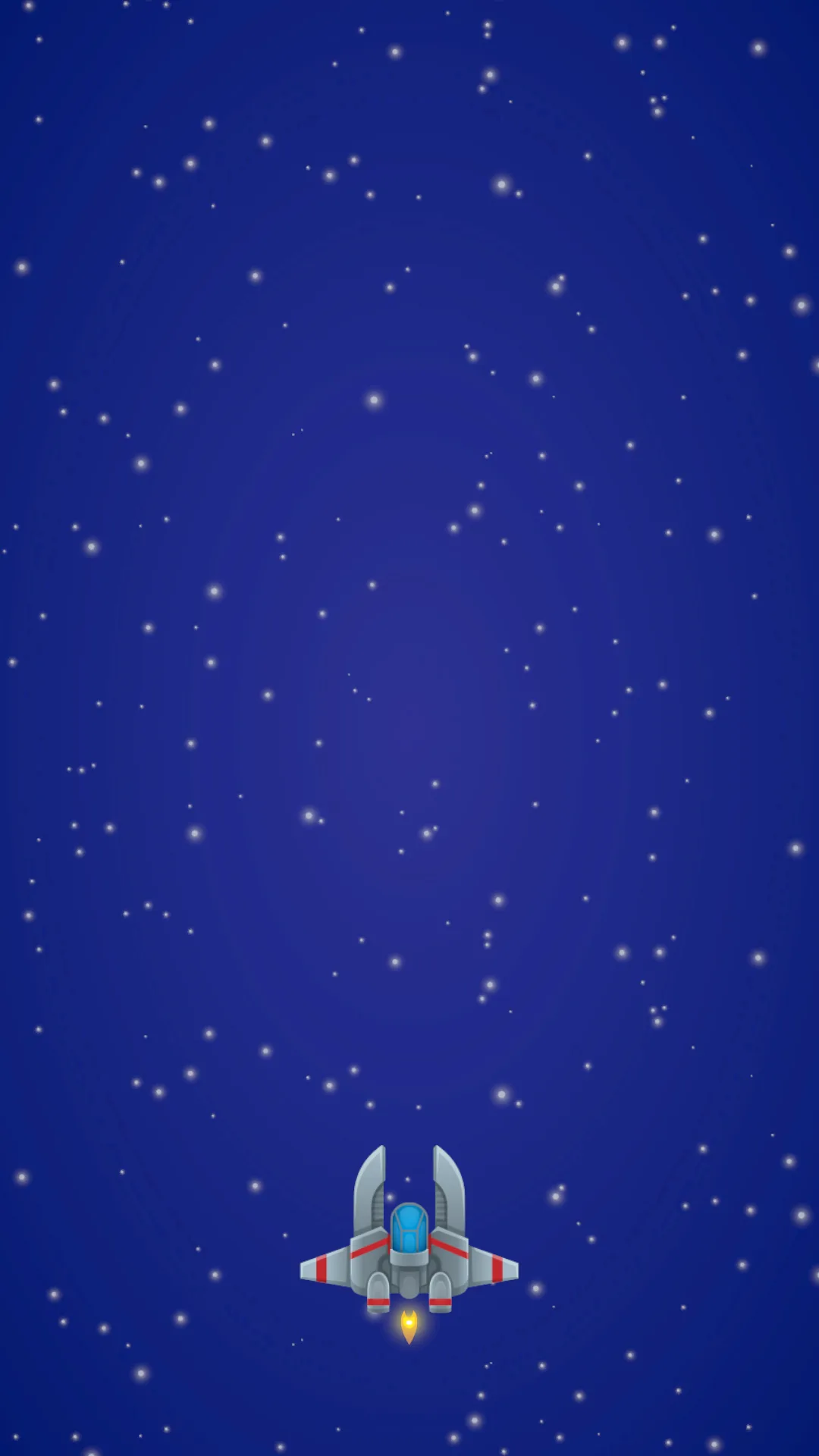
A shoot 'em up screen looks simple: a ship, some stars, a background. It is actually four sprite layers stacked on top of each other, and the thing deciding which layer draws over which is not the Z coordinate, which is what most beginners assume.
Here is what you will have by the end:

We build from the bottom up: background first, then the ship, then scrolling. The static picture has to be correct before a single line of script runs, because a layout mistake mixed with a motion mistake is very hard to separate.
Start from the lesson 0 project. Create a new scene using the Basic (URP) template and save it as _ShootEmUp/Scenes/SEU_01_Scene.unity.
The camera sees exactly 9 × 16 units
In Game view, add a Fixed Resolution of 1080 × 1920 so the frame has the right vertical aspect from the start. Delete the Directional Light, because sprites use the Sprite-Unlit-Default material and need no lighting.
Select Main Camera and set four things:
| Main Camera | Value |
|---|---|
| Position / Rotation | (0, 0, −10) / (0, 0, 0) |
| Projection | Orthographic |
| Size | 8 |
| Background Type / Color | Solid Color / #0B0F2A |
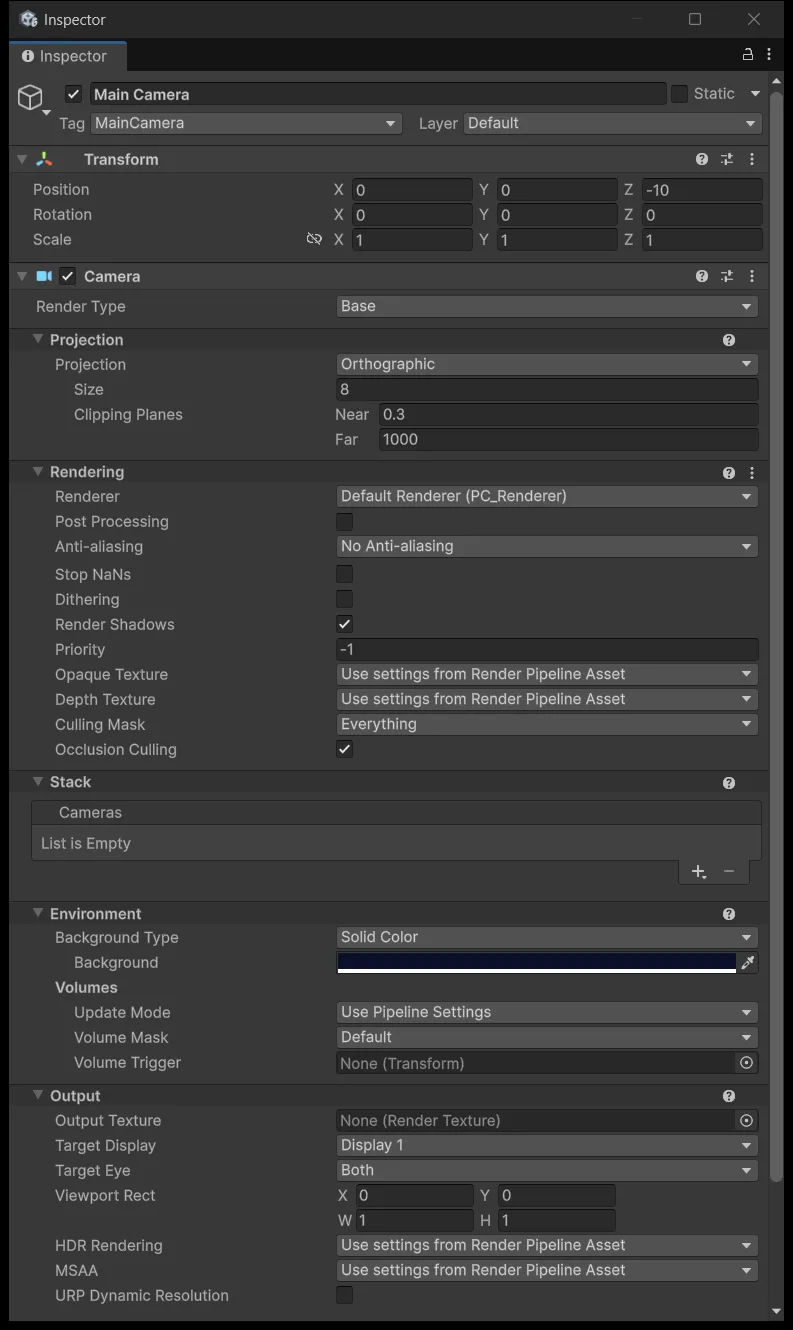
Size is half the height, not the full height, so Size 8 means the camera sees 16 units vertically. A 9:16 aspect makes the width 16 × 9/16 = 9. The camera sits at the origin, so the visible region runs from X −4.5 to 4.5 and Y −8 to 8. These four numbers come back in lesson 2 when we clamp the ship inside the screen, and in lesson 7 when we pick spawn positions.
These are world units, not pixels. An image 200 px wide at PPU 100 is exactly 2 units, a little over a fifth of the screen width.
Place the ship at Y = −5.5
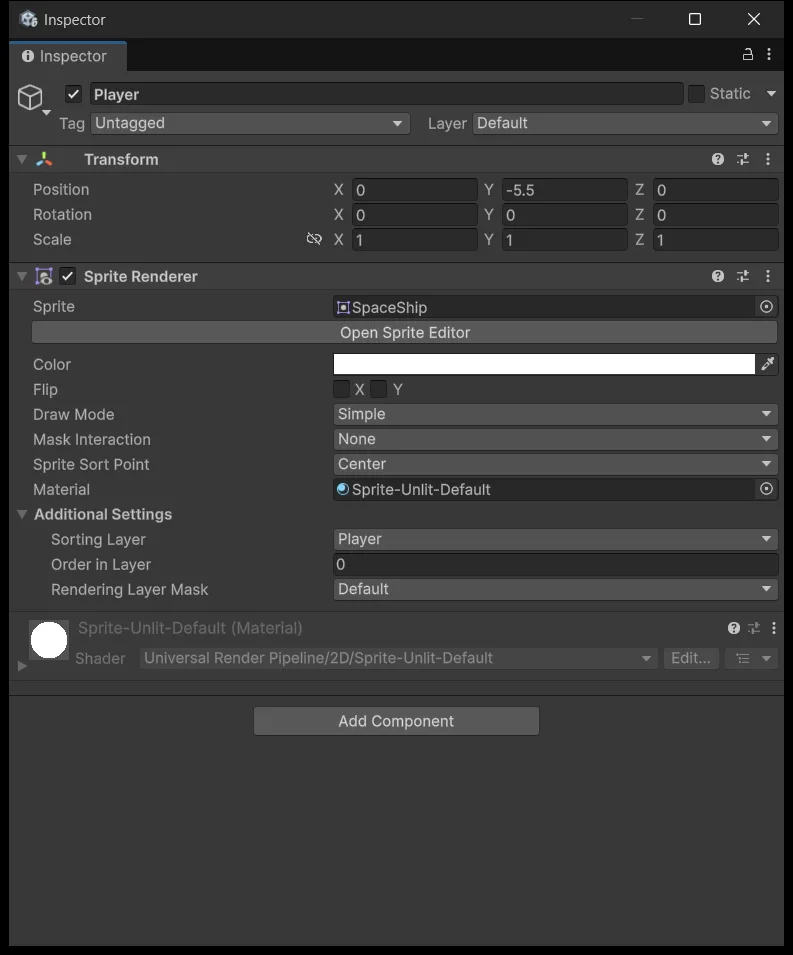
Drag the ship sprite into the scene at (0, 0, 0) and check that it sits in the middle of Game view. Then change Position to (0, −5.5, 0) and name the object Player.
That −5.5 is not arbitrary. The camera sees down to Y = −8, the ship is roughly 2 units tall, so a centre at −5.5 puts its bottom edge at −6.5 and leaves about 1.5 units of clearance below. That clearance is where the engine fire goes, and where a player's thumb would sit on a mobile build. If your ship sprite has a different height, redo the arithmetic rather than copying −5.5.
Draw order lives in Sorting Layer
Go to Project Settings → Tags and Layers → Sorting Layers and add, in order: Background, Default, Enemies, Projectiles, Player, FX, UI.
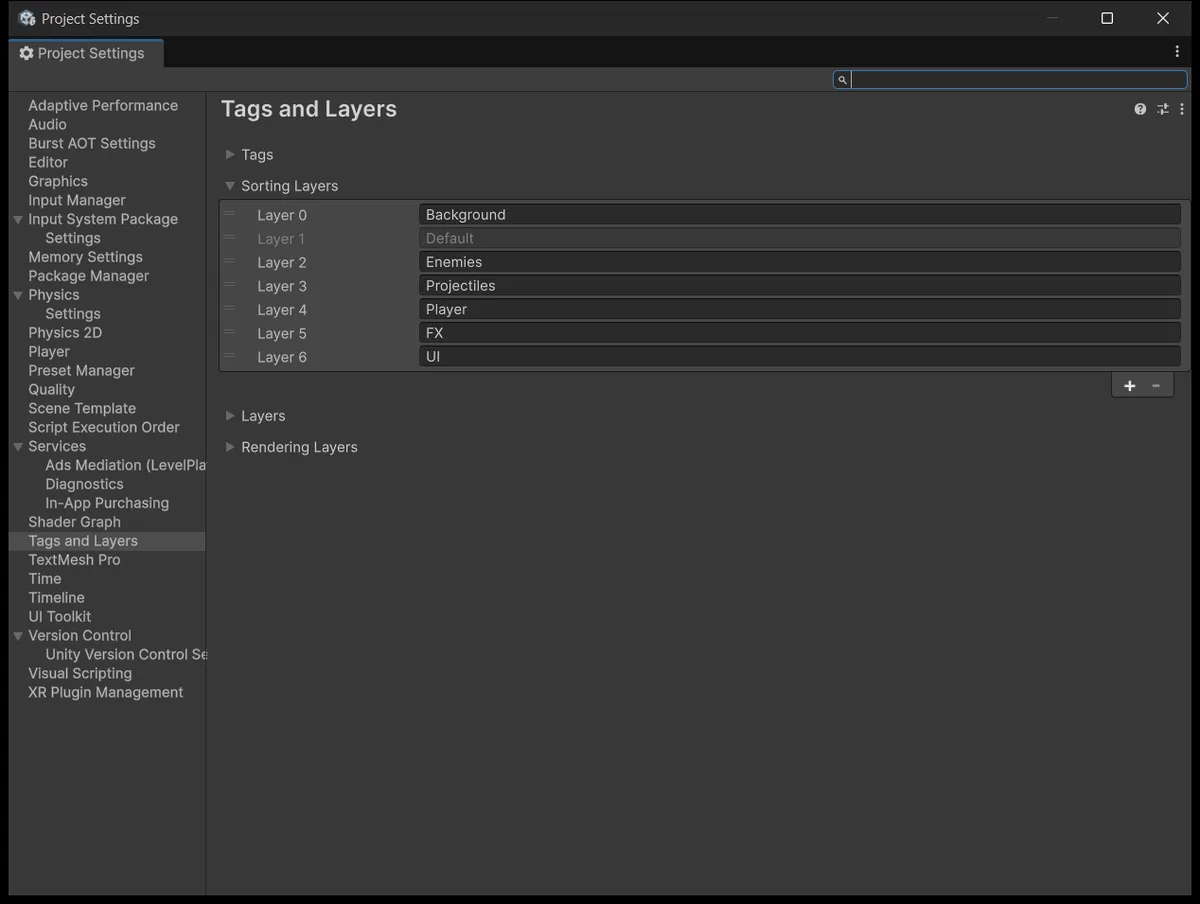
The further down the list a layer sits, the later it draws, which means it covers the layers above it. Within a single layer, a higher Order in Layer draws later.
This is where beginners routinely confuse Sorting Layer with Layer. Sorting Layer is the list you just edited in Tags and Layers, and it only affects draw order. Layer is the dropdown at the top right of a GameObject's Inspector, and it is used by physics and camera culling. A bullet drawing behind the ship hull is a rendering rule and belongs to Sorting Layer. Your own bullets not damaging your own ship is a collision rule, belongs to Layer, and does not come up until lesson 5.
Put Player on Sorting Layer Player, Order 0.
Engine fire is a child object
Create an Empty as a child of Player, name it EngineFire, and give it a Sprite Renderer with the flame sprite. Local position around (0, −1.02, 0), Order in Layer −1.
Order −1 pushes the flame behind the hull within the same Player sorting layer, so it reads as thrust coming out from underneath rather than a decal pasted on top. The exact position depends on your sprite, so just drag it in Scene view until it lines up with the tail.
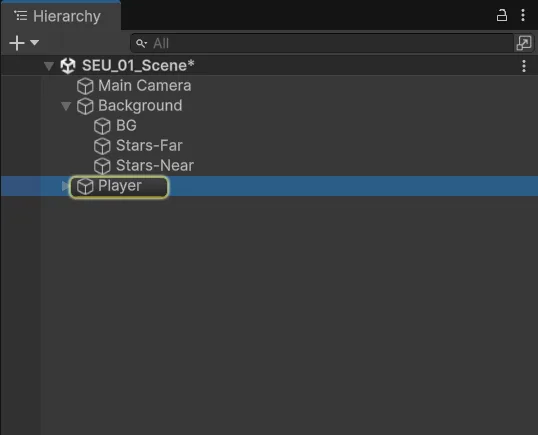
Making EngineFire a child has a consequence worth noticing: in lesson 2 when the ship starts moving, the flame follows it without a single line of code.
Three background layers covering the frame
Create an Empty named Background at the origin and build three children inside it, in this order.
BG is the bottom layer: a Sprite Renderer with a background image covering at least 9 × 16 units, Sorting Layer Background, Order 0. For a 1000 × 1000 px image at PPU 100, scale (1, 1.7, 1) produces a 10 × 17 unit backdrop, a little overhang on each side which is what you want. For a differently sized image, compute pixels ÷ PPU × scale.
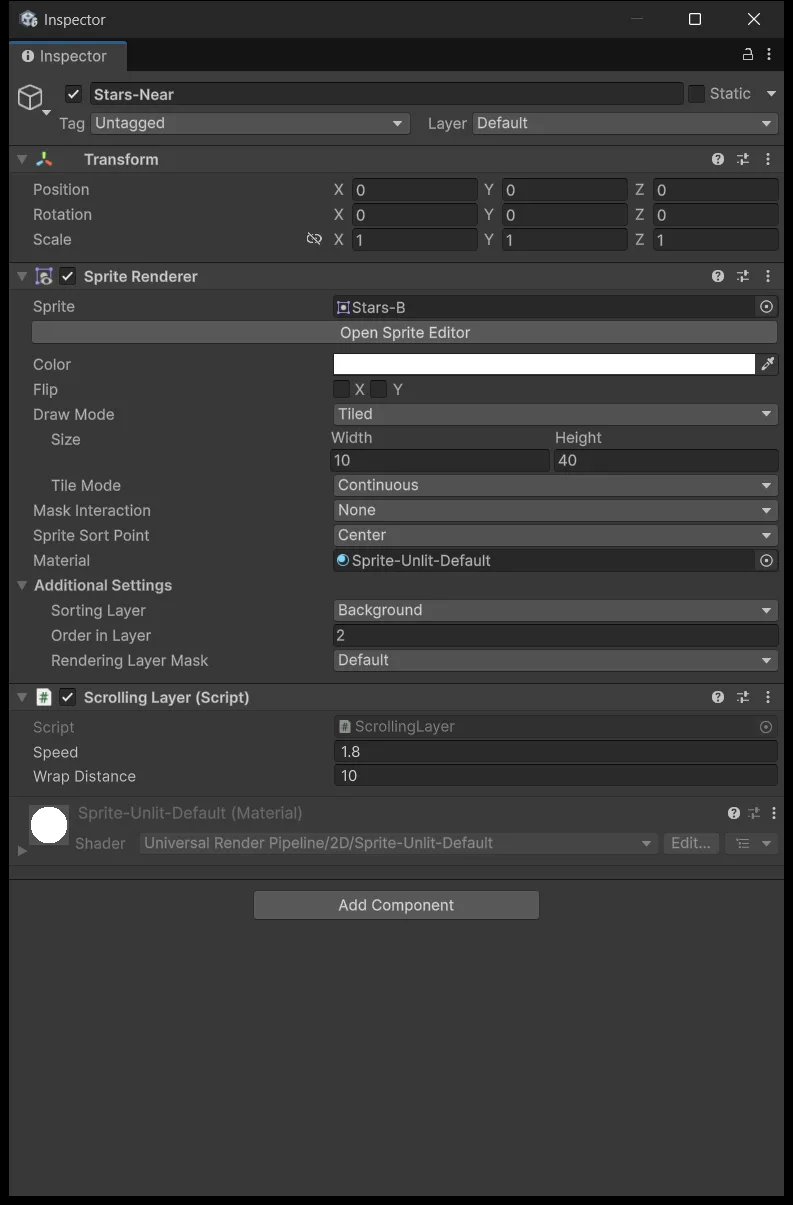
Stars-Far sits above BG: Sprite Renderer with Draw Mode Tiled, Size (10, 40), alpha 0.45, Sorting Layer Background, Order 1. The star texture needs Full Rect enabled and matching top and bottom edges, otherwise a seam appears once it scrolls.
Stars-Near goes on top of the background group: identical setup but alpha 0.8 and Order 2. Denser on purpose, so that when the two layers move at different speeds your eye reads the darker one as closer.
No tiling star texture? Build one from sprites
For each layer, create an Empty and scatter about 12 small Circle sprites within X −4.5 to 4.5 and Y −5 to 5, scaling each to 0.03–0.06. Then duplicate the whole child group up by Y +10 and down by Y −10. The pattern now repeats every 10 units, matching the Wrap Distance below. This approach uses grouped objects, so ignore the Tiled fields.
Scene view and Game view do not show the same thing
Once the background is in place, these two windows look very different, and that is correct.
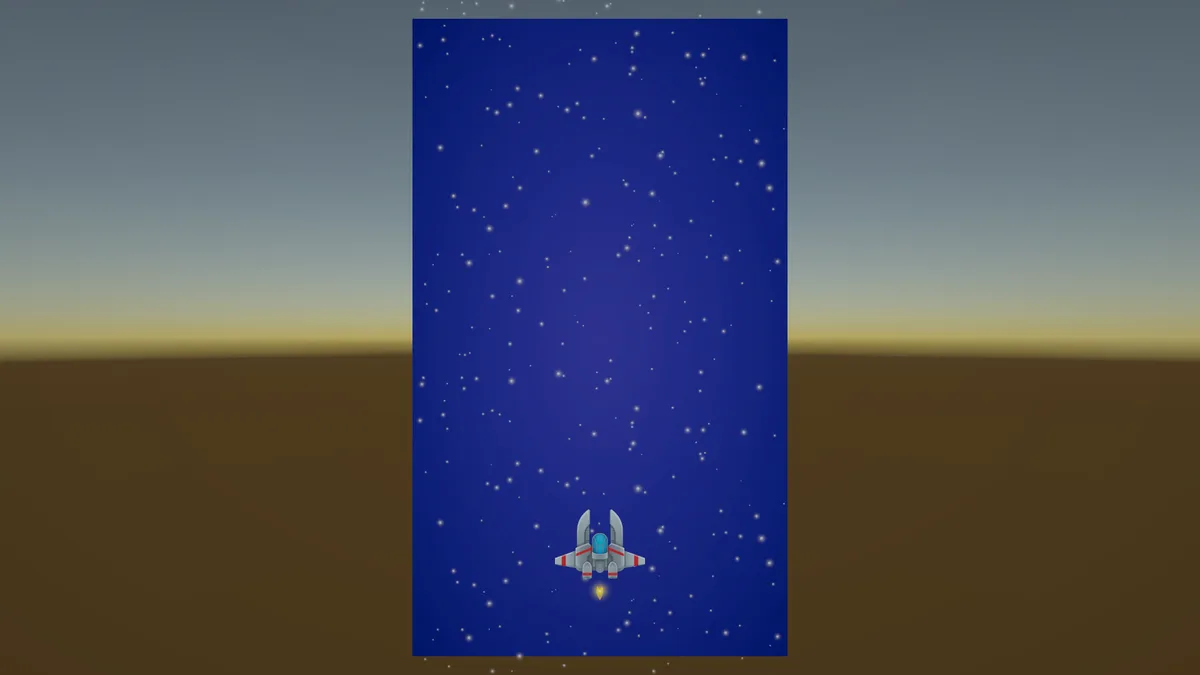
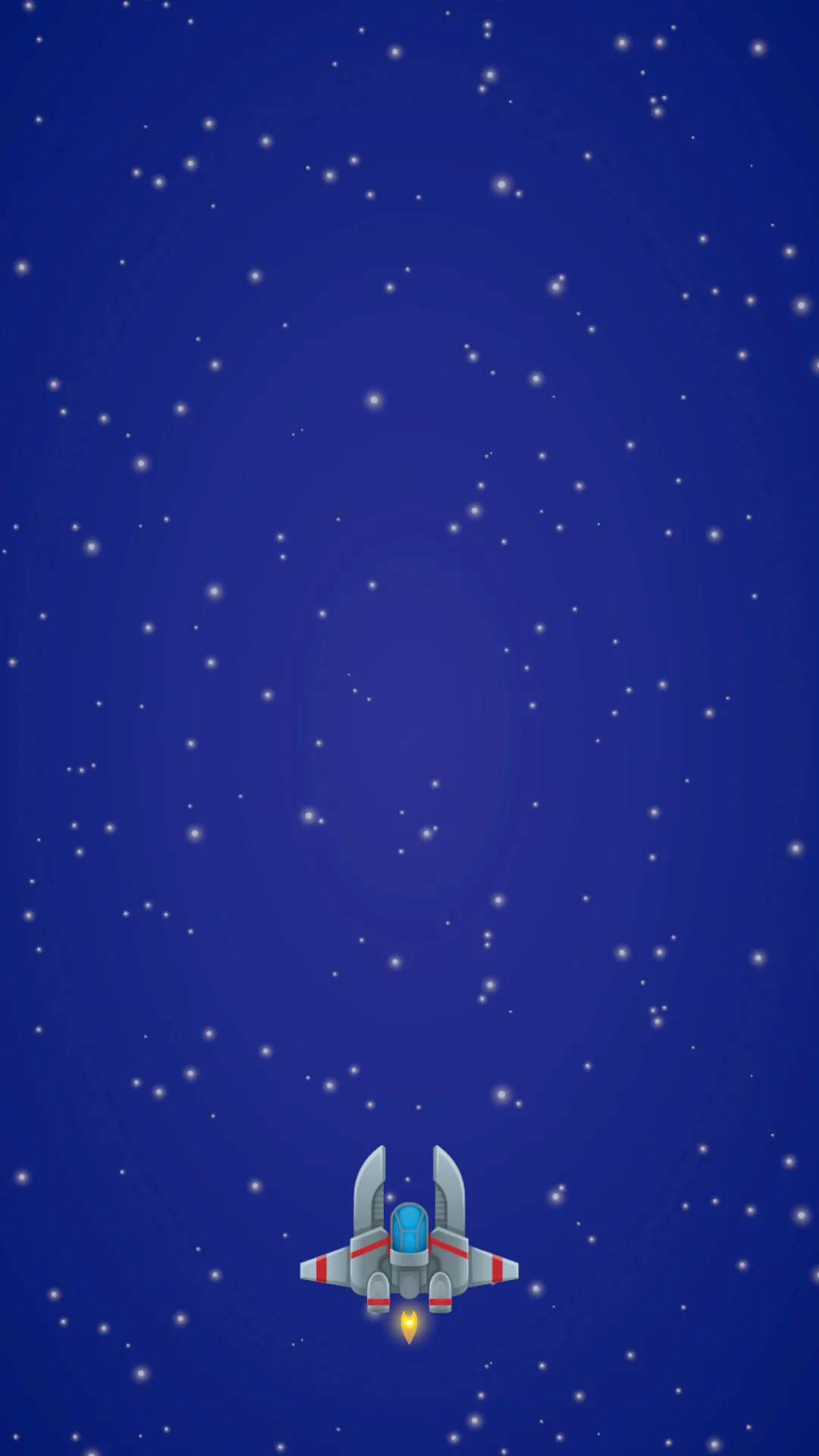
Scene view lets you see everything, including background that spills outside the frame. Game view shows only the region the camera selects, which is what the player sees. That extra background in Scene view is exactly the material that scrolls into frame later, so seeing it overhang is a good sign.
Check the static picture before moving on: the background fills Game view with no gaps, the flame sits behind the tail, and the far stars are dimmer than the near ones. Fix anything wrong now rather than running a script over a broken layout.
Scroll the background and wrap after exactly one cycle
In _ShootEmUp/Scripts, create an Assembly Definition named ShootEmUp with Root Namespace ShootEmUp. It groups the scripts in that folder into their own assembly, and lesson 2 adds the Input System reference to it. If you copy the asmdef from the source package, do not create a second one.
Create Scripts/Background/ScrollingLayer.cs. The script does one thing: push an object downward at a given speed, and each time it has travelled one full cycle, snap it back to where it started.
Assets/_ShootEmUp/Scripts/Background/ScrollingLayer.cs
using UnityEngine;
namespace ShootEmUp.Background
{
    public sealed class ScrollingLayer : MonoBehaviour
    {
        [SerializeField, Min(0f)] private float speed = 1f;
        [SerializeField, Min(0.01f)] private float wrapDistance = 10f;
        private Vector3 startPosition;
        private float distance;
        private void Awake() => startPosition = transform.position;
        private void Update()
        {
            distance = Mathf.Repeat(distance + speed * Time.deltaTime, Mathf.Max(0.01f, wrapDistance));
            transform.position = startPosition + Vector3.down * distance;
        }
    }
}
The part worth noticing is Mathf.Repeat. It keeps the remainder instead of resetting distance to zero, so when the pattern jumps back to its starting point it jumps by exactly one cycle and your eye cannot catch it. Replace it with if (distance > wrapDistance) distance = 0 and every cycle loses a small sliver, which you see as a stutter.
Wait for the compile, then Add Component to both star layers. Far gets Speed 0.6, Near gets Speed 1.8, and both get Wrap Distance 10.
Wrap Distance must equal your pattern's actual cycle. A texture 1000 px tall at PPU 100 gives a 10 unit cycle. The scattered-Circle approach above also gives 10, because that is the spacing between duplicates. A pattern with a different cycle needs a different number here.
Near running three times faster than Far is deliberate. Two layers at the same speed read as one flat image; the speed difference is what creates depth.
Run it long enough to catch the seam
Press Play and let it run for 30 seconds rather than stopping after a few.
The far layer needs 10 ÷ 0.6 = 16.67 seconds to repeat once, so running for five seconds and declaring the scroll smooth tests nothing. The near layer is quicker at 10 ÷ 1.8 = 5.6 seconds per cycle.
Three common symptoms and where to look:
- A stutter exactly at each seam: the pattern cycle does not match Wrap Distance, or the texture edges do not tile.
- A blank band appearing as it scrolls: the image group is not tall enough — increase the Tiled Size or add another copy.
- Nothing moves at all: check the script is attached, the component is enabled, and Play Mode is actually running.
You have now separated three distinct jobs: the camera picks the visible region, Sorting Layer picks the draw order, and a script changes position over time. The next lesson adds the player to that chain, so they are the one changing the ship's position.
Source for this stage
Download the lesson 1 scripts — code and assembly definitions only, no scenes, prefabs, or the pictured artwork. When upgrading from an earlier lesson, overwrite files at the same paths.
Next: Shmup #2.